
The Revit renderer got an upgrade in version 2019. There are a bunch of new appearance parameters available. The 2008-2018 Materials are now called “Legacy Appearance Assets” in Revit jargon.
Let’s Try To Figure This Out
Make a scene, starting with the Architectural template. Put a Floor, Railing, Topo, Planting & Camera View.
Or start from the Architectural template. The public A360 RVT share is no longer available.
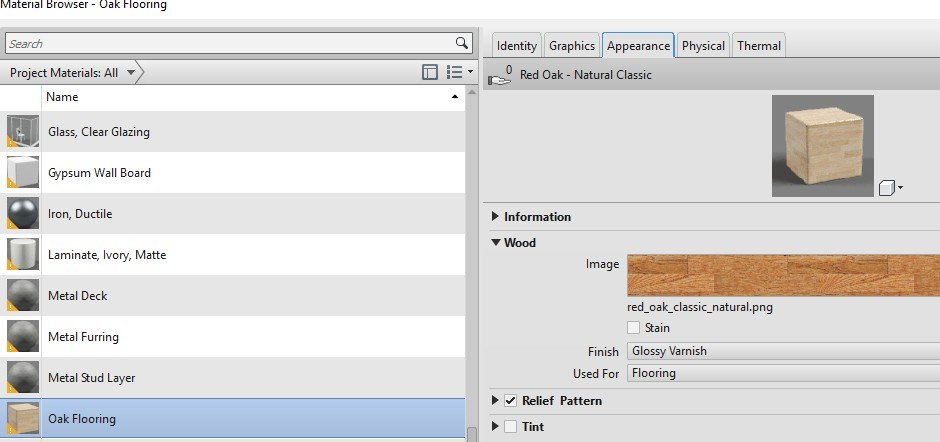
The Floor (Wood Joist 10″ – Wood Finish) material is set to the old Material “Oak Flooring”. We can tell that it’s old because of the wee yellow triangle on its icon.
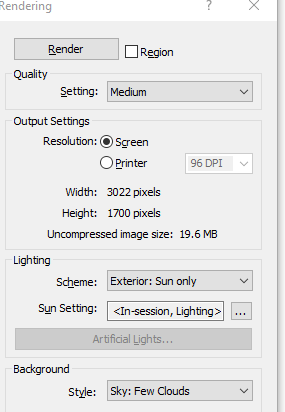
Make a rendering on Medium Quality Setting

Not bad. Now let’s work on the materials…
In the Material dialog, open the asset browser
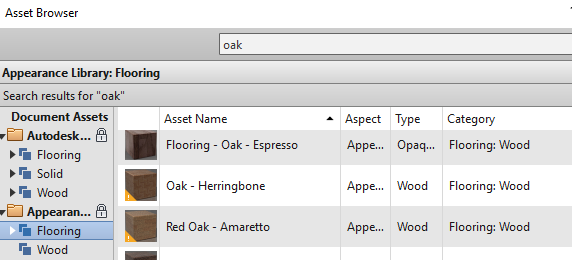
 There is one new flooring Material (doesn’t have the little yellow triangle)
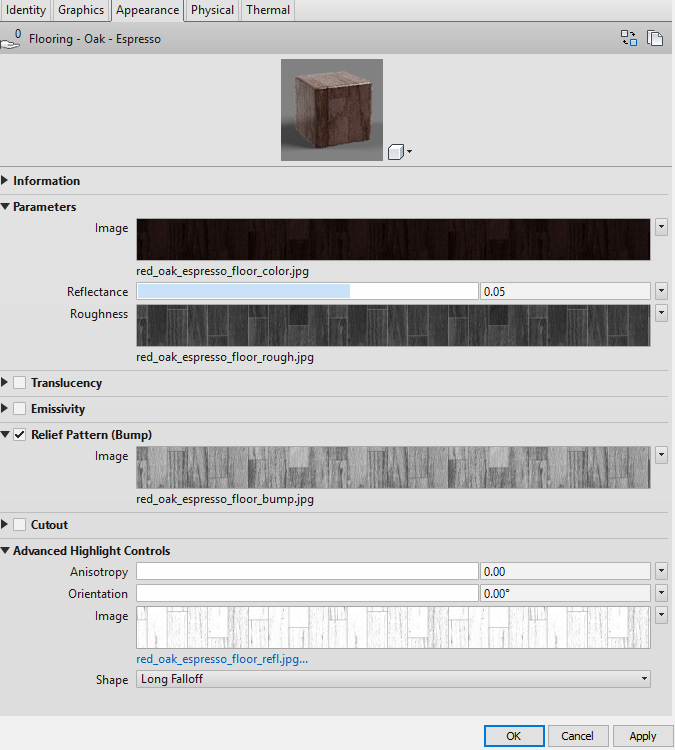
Here’s what its parameters look like
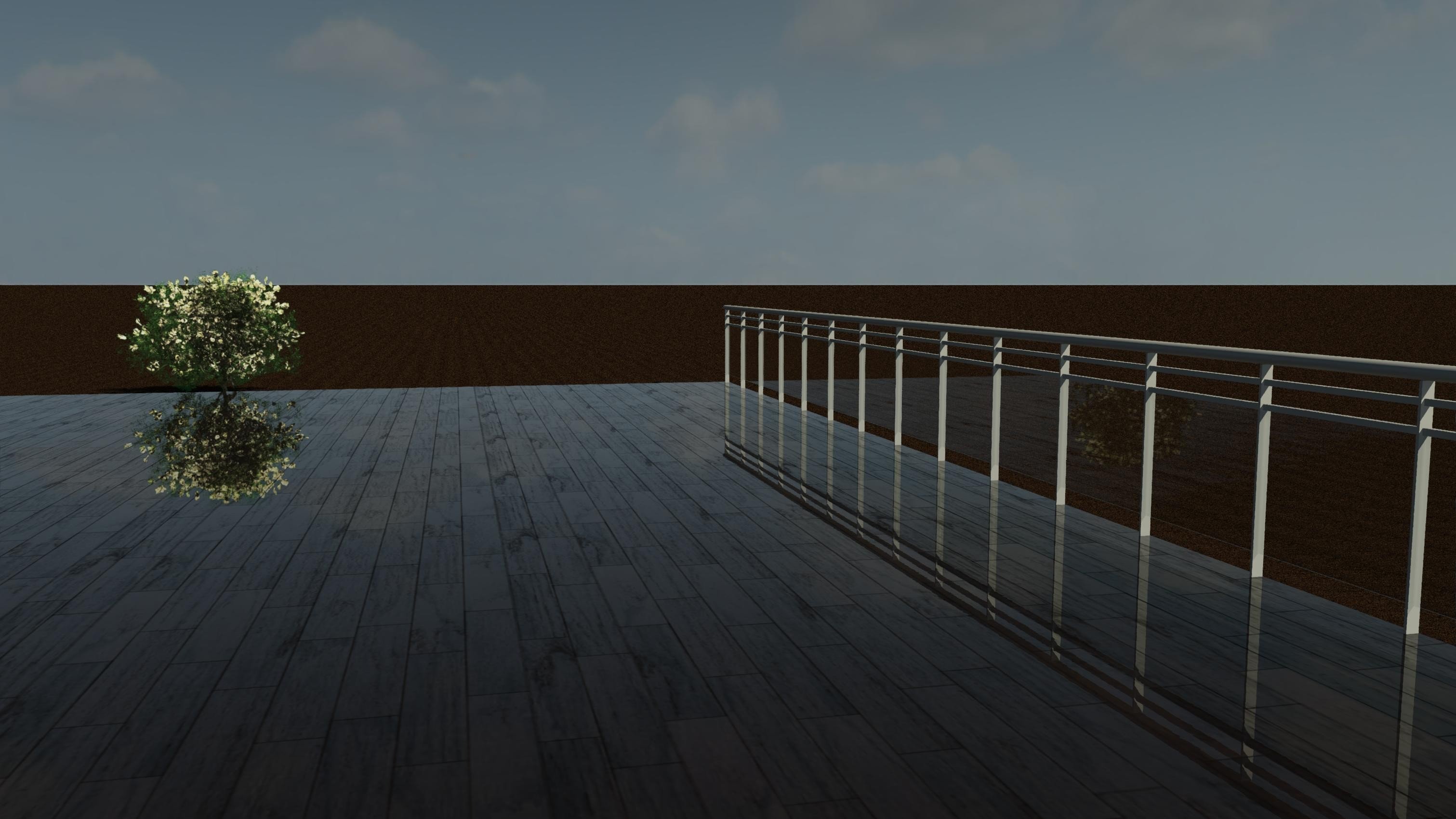
Rendering with that Material
Now find a new Glass Material
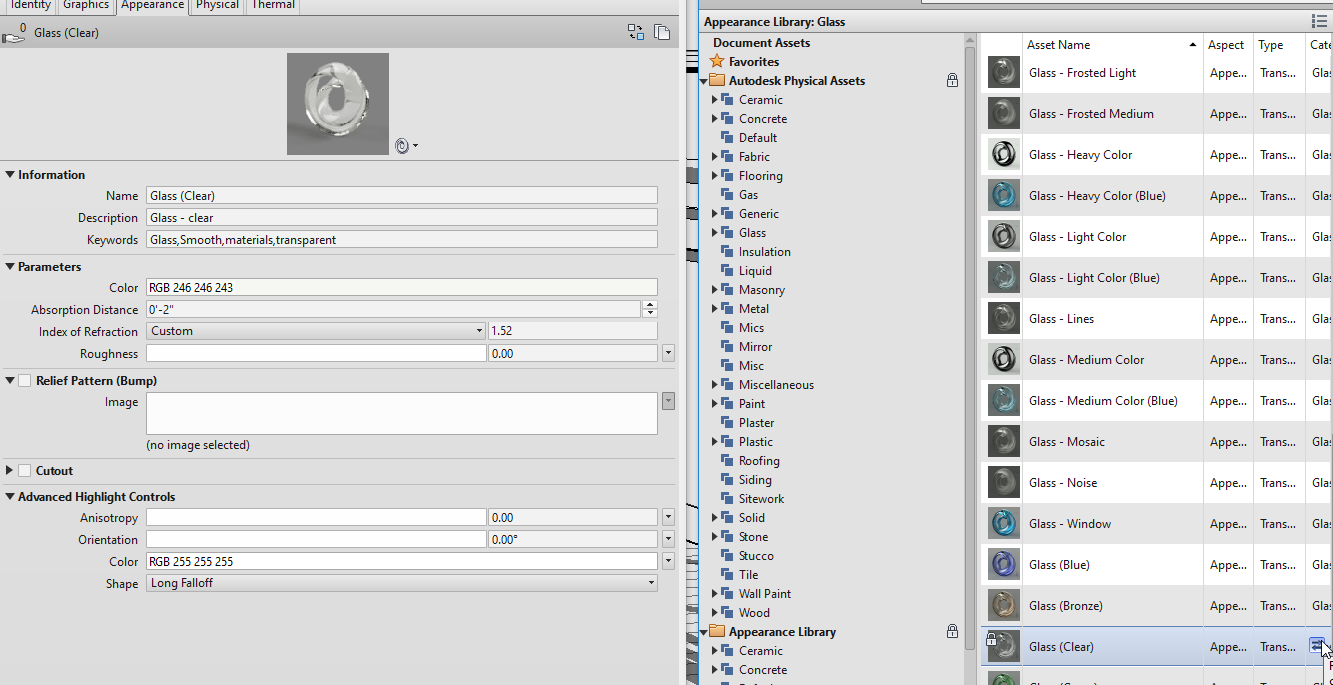
Re-render. Looks a little better.
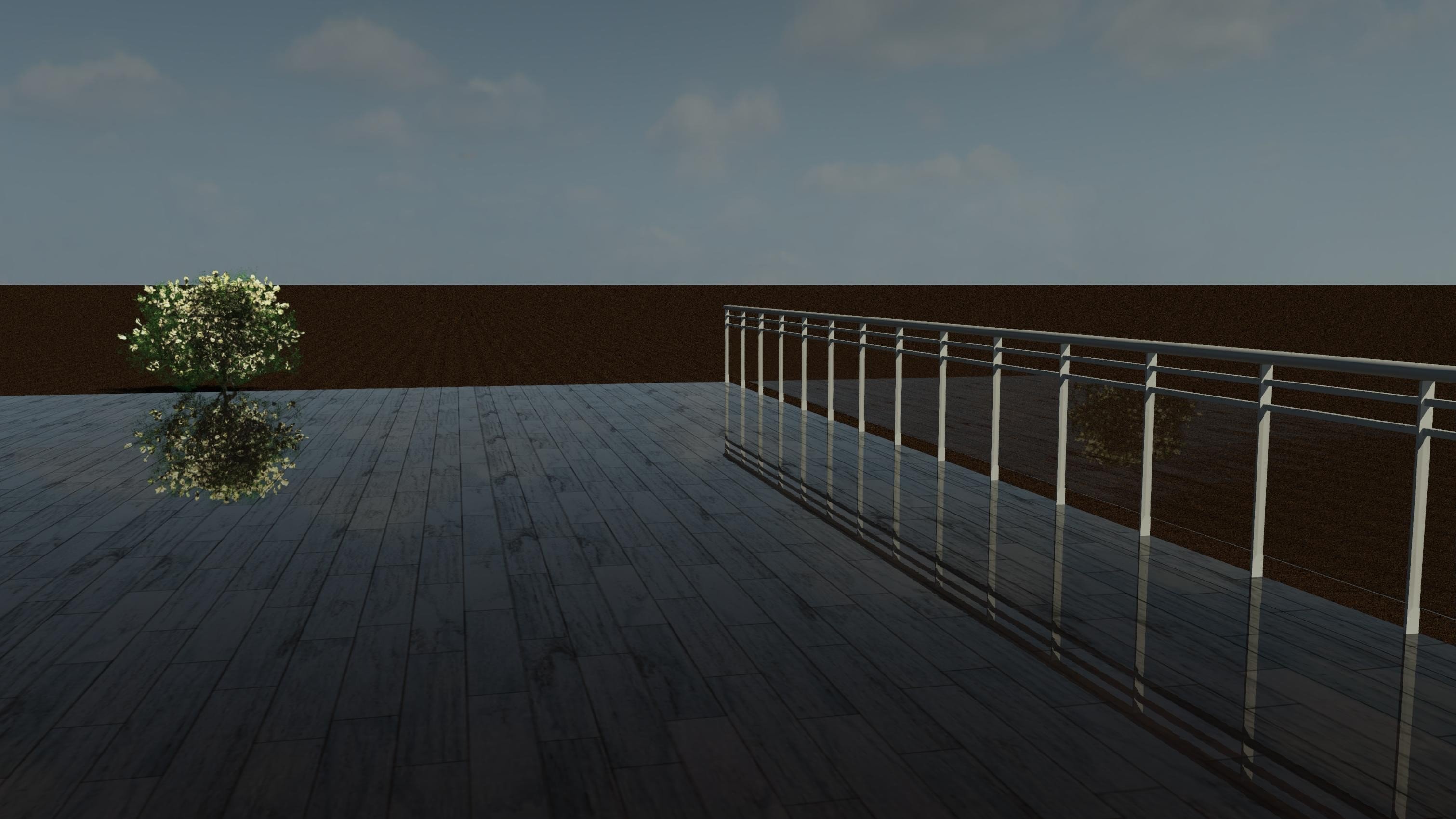
Set a new metal for the Railing Families or Category, too…
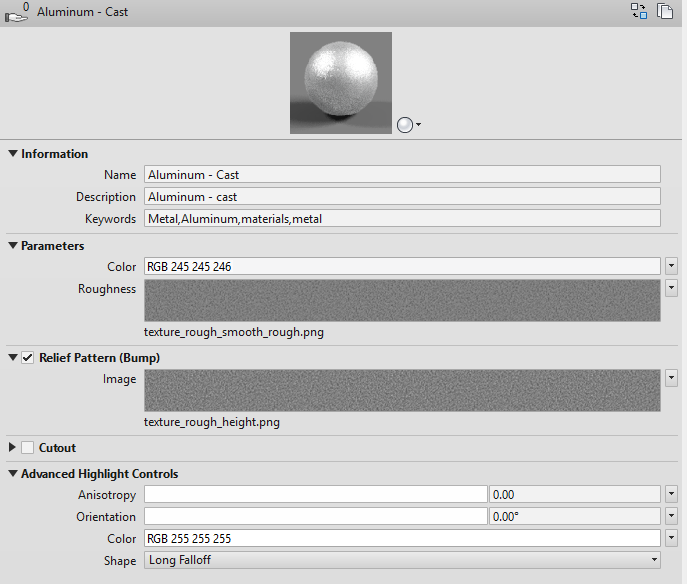
Make a New Flooring Material from Mats

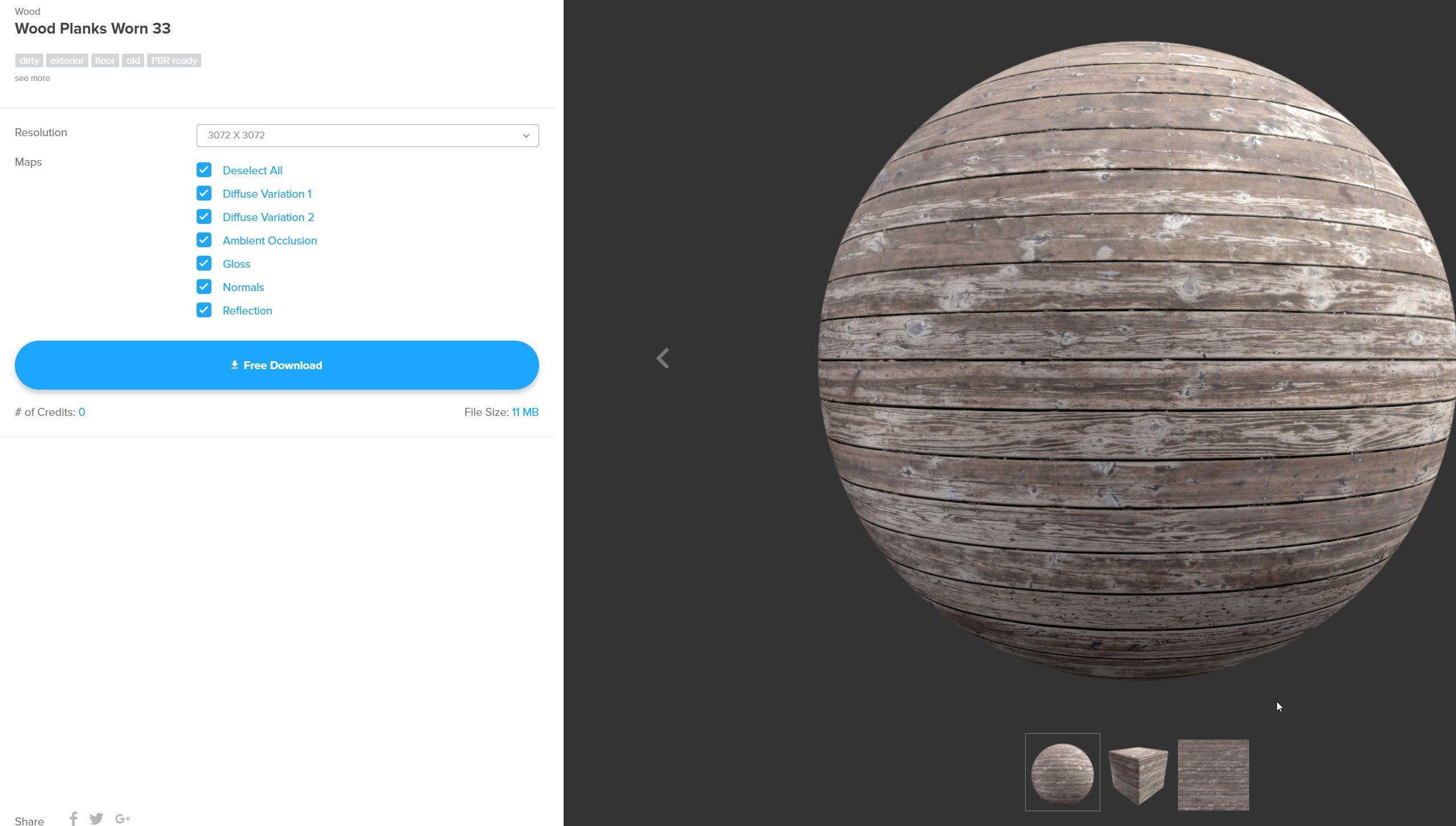
poliigon has some high-quality mats for materials and some are free https://www.poliigon.com/search?is_free=true
Download a wood plank texture from Poliigon (search their free textures; the 2018 wood-planks-worn-33 slug is gone)
Extract these files
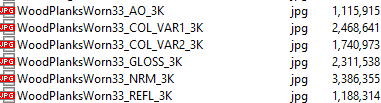
Put them in a folder that is in Revit’s Rendering path (File > Options)
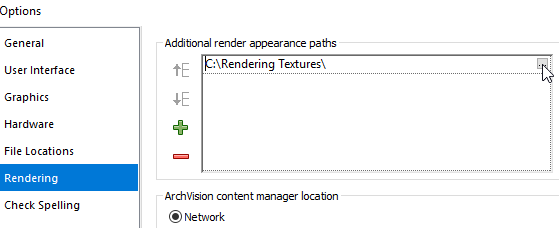
Now it’s time to guess where to put the images in the Revit Material parameters.
Duplicate the existing Material and rename
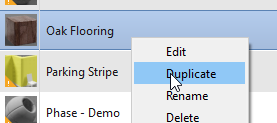
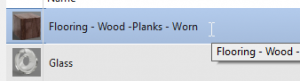
Duplicate and rename the rendering asset
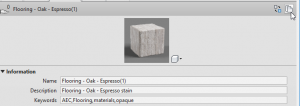
Guess where the images go. There is an Autodesk help page for this but its explanations are minimal.
The dialog is going to look thusly
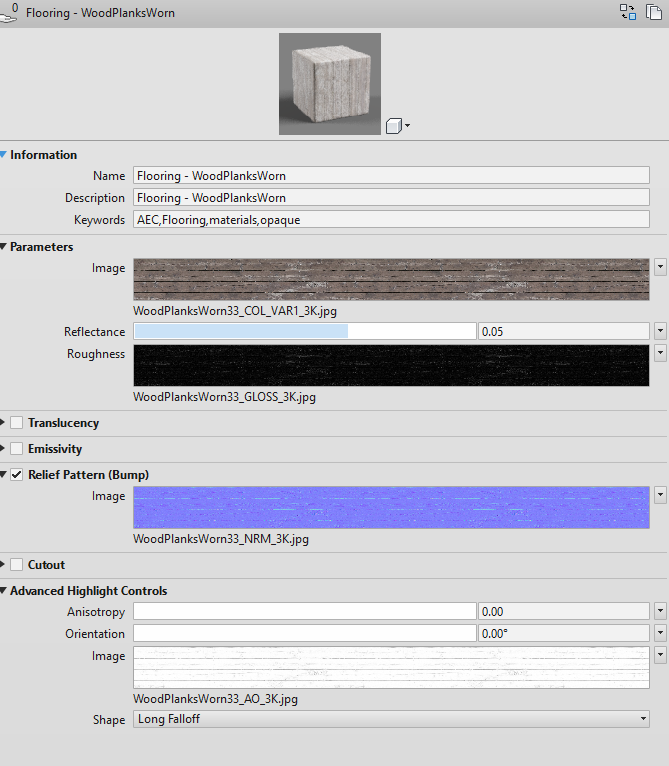
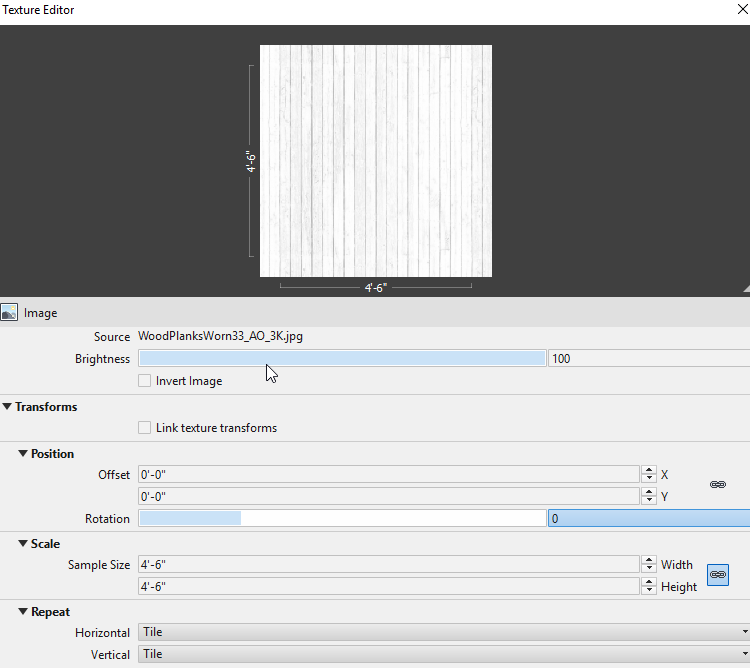
Main image map
Change Scale since there are 18 boards and they should be 3″, thus has 54″ Sample Size.
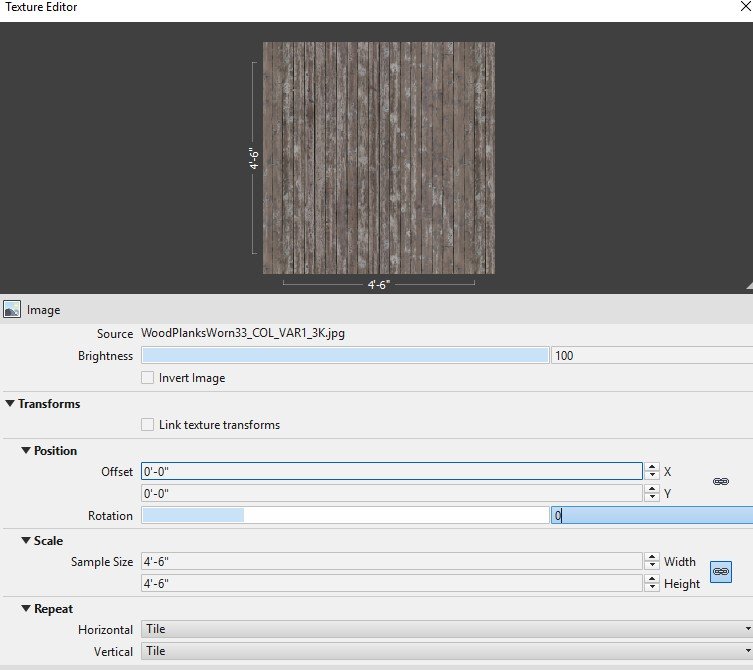
Roughness (poliigon calls it gloss)
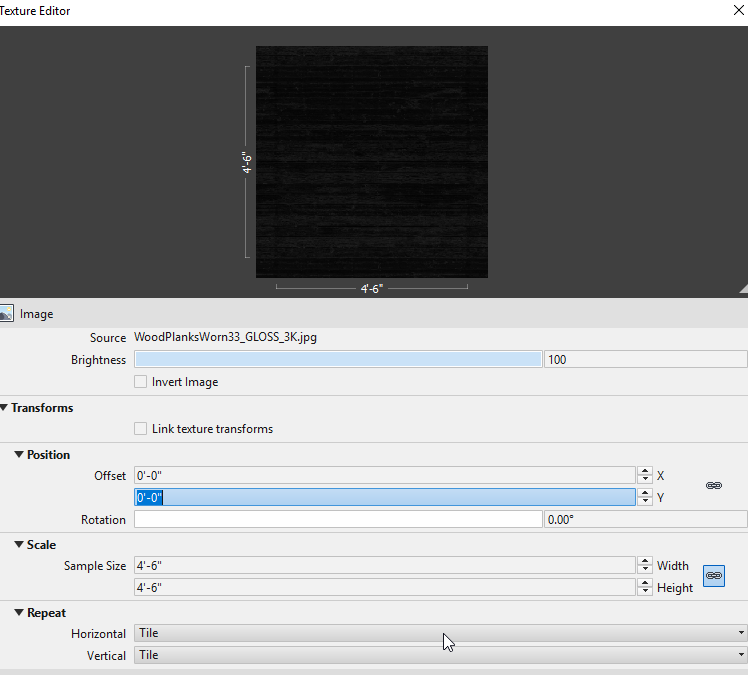 Bump — and change Advanced to Normal Map
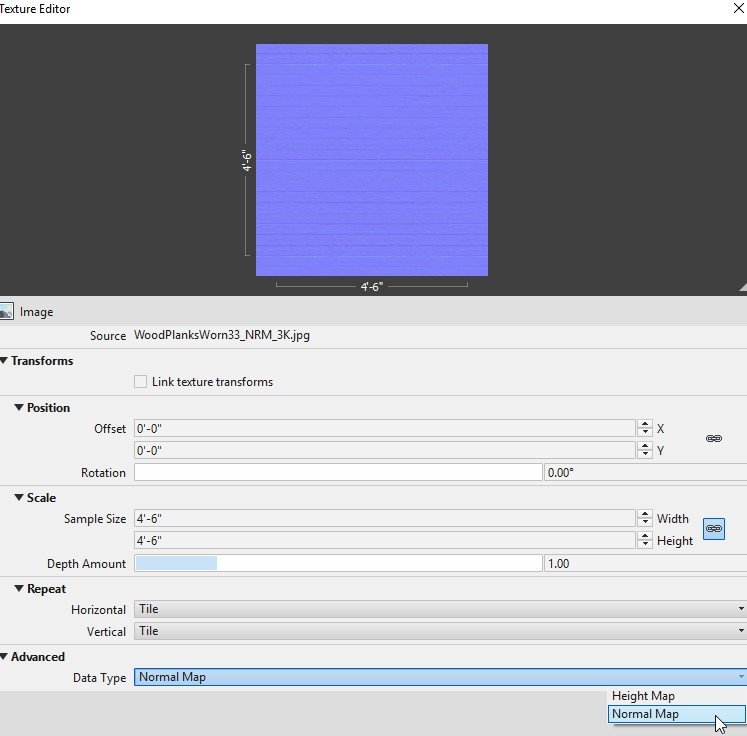
This is for Highlight (because it looks like the OOTB one)
Rendering
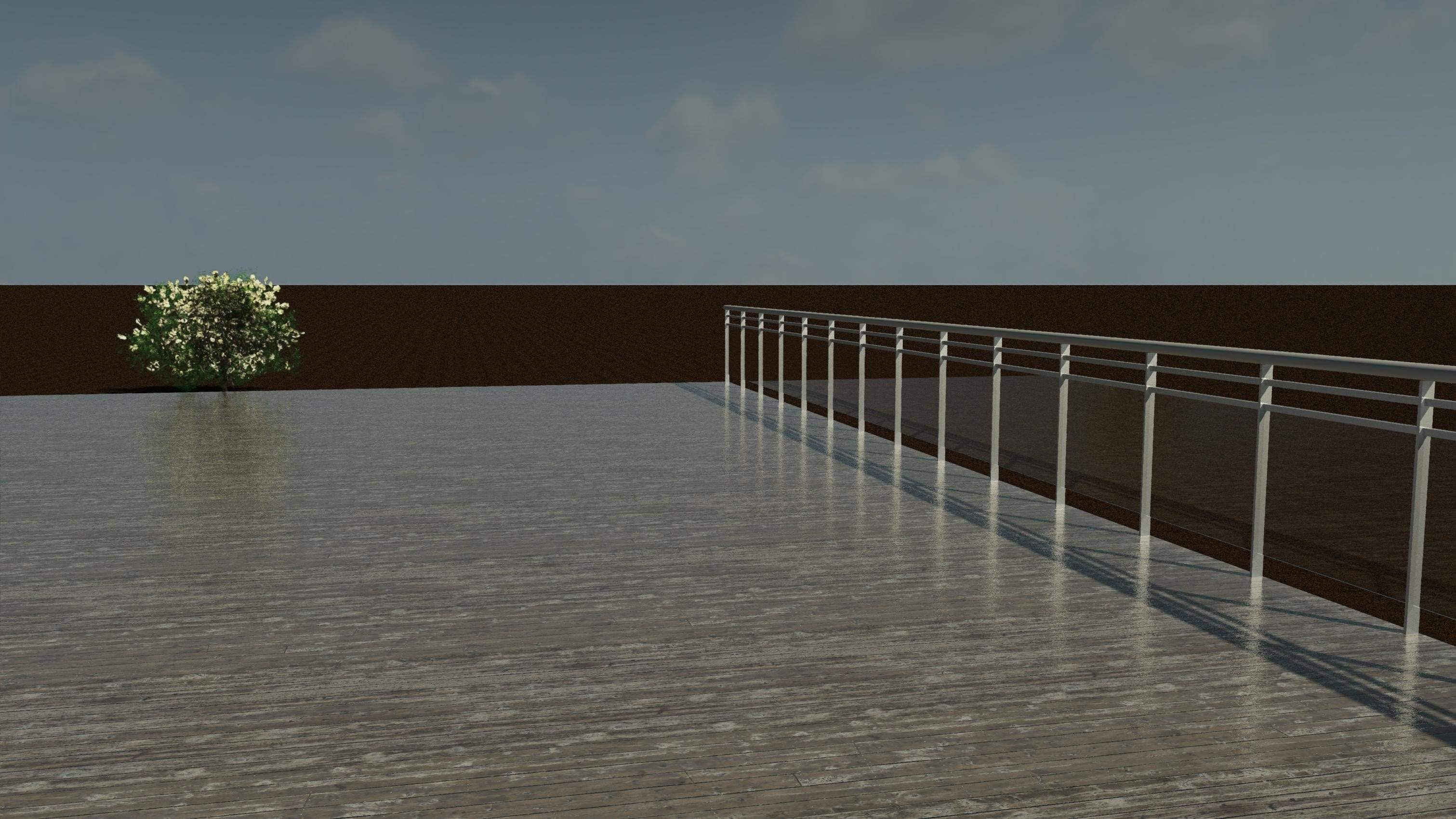
Close-up

Make the Topography Material
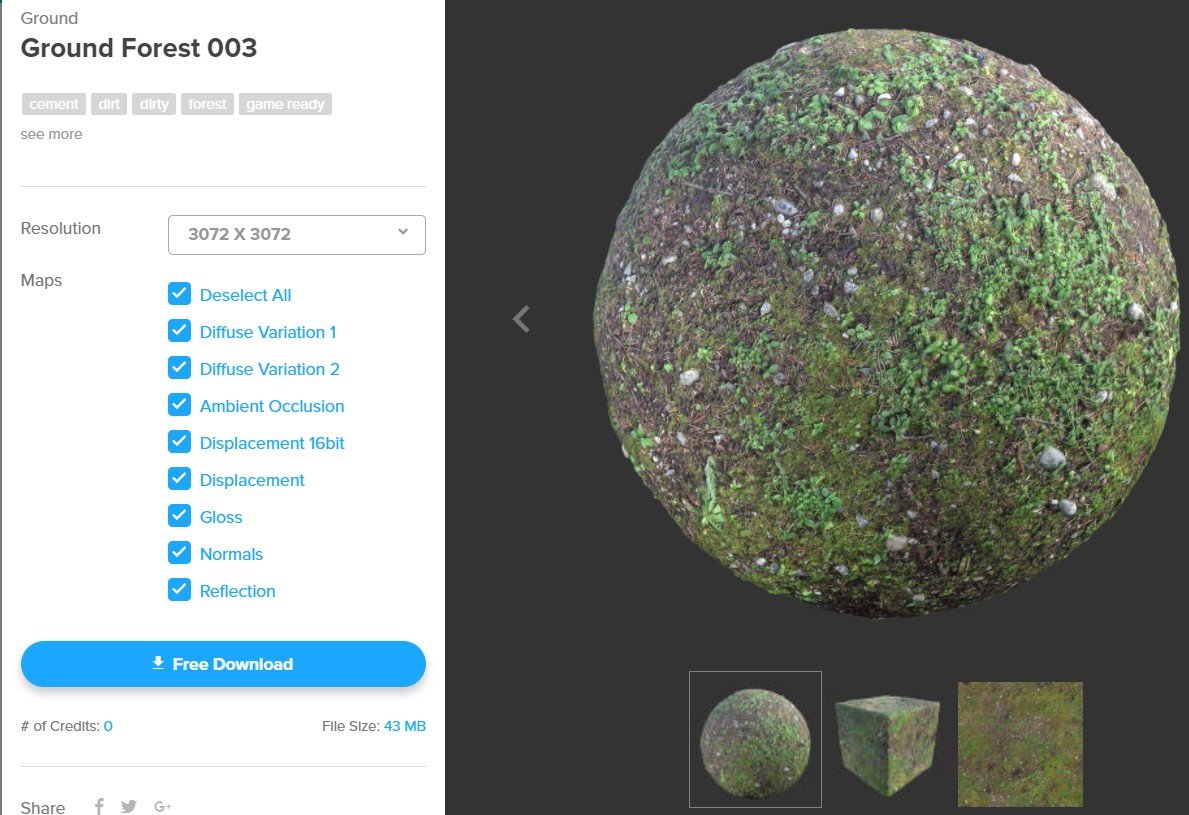
Get forest/ground mats from Poliigon (the 2018 ground-forest-003 slug is gone)…
Make new Material
Find a similar new asset (no yellow triangle on the icon)
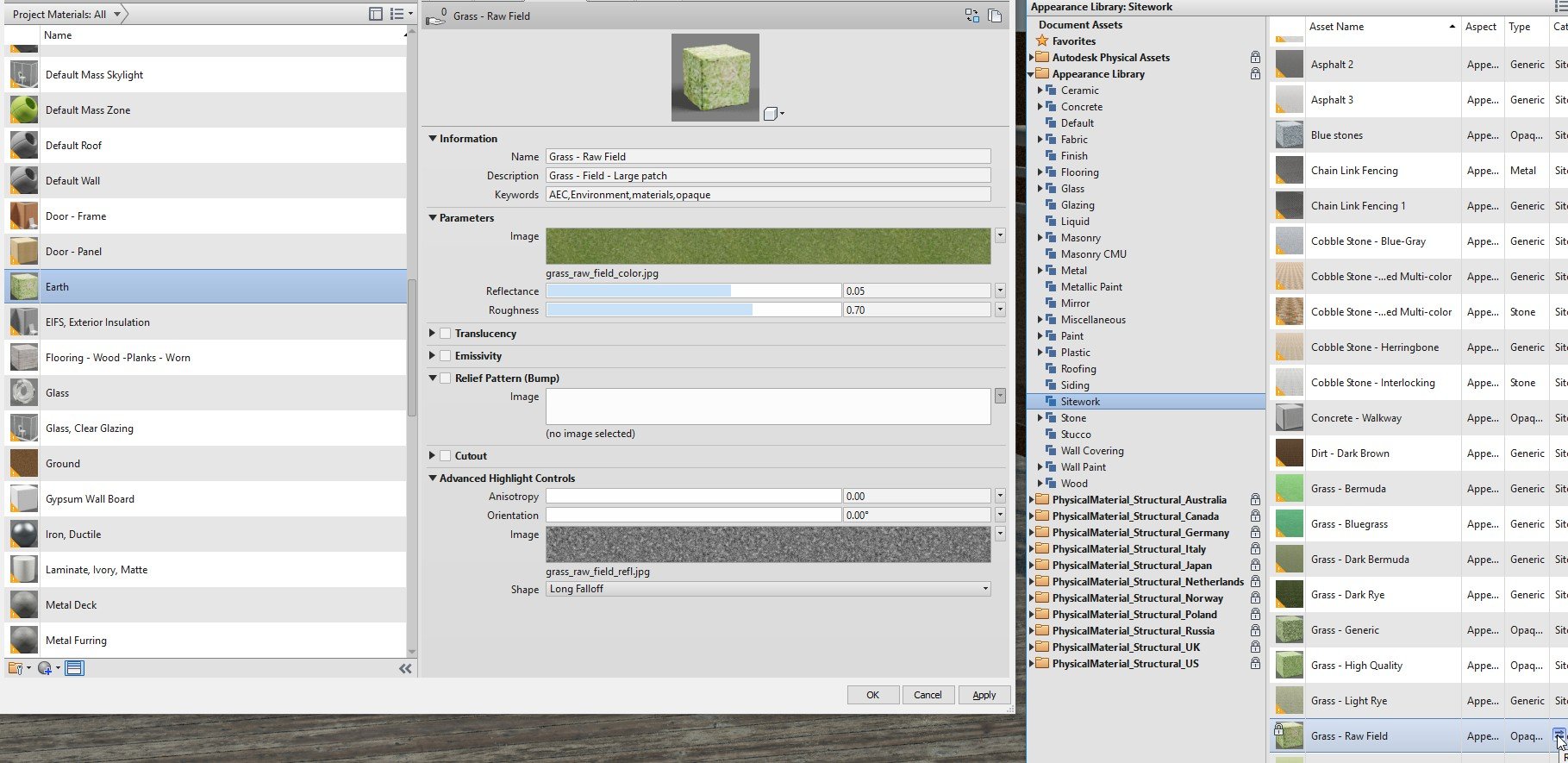
Duplicate and rename asset
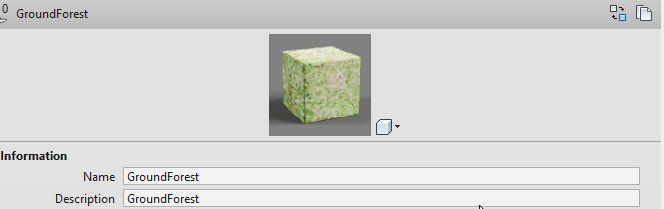
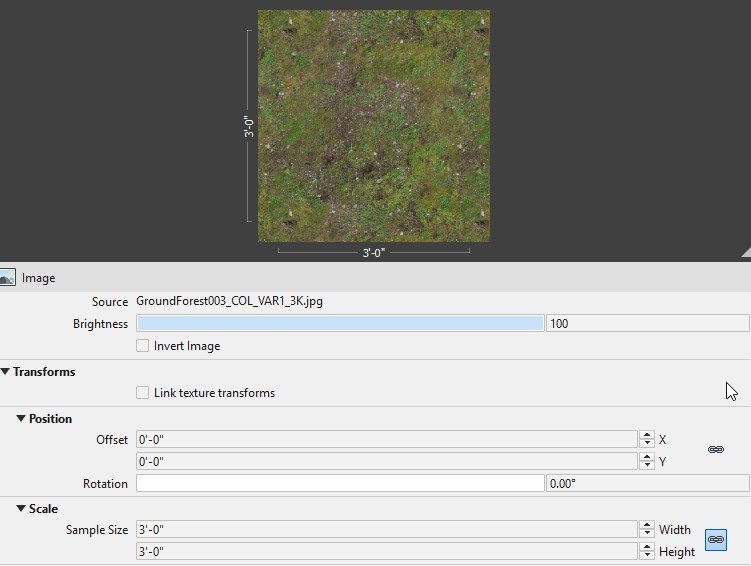
Just change the main map
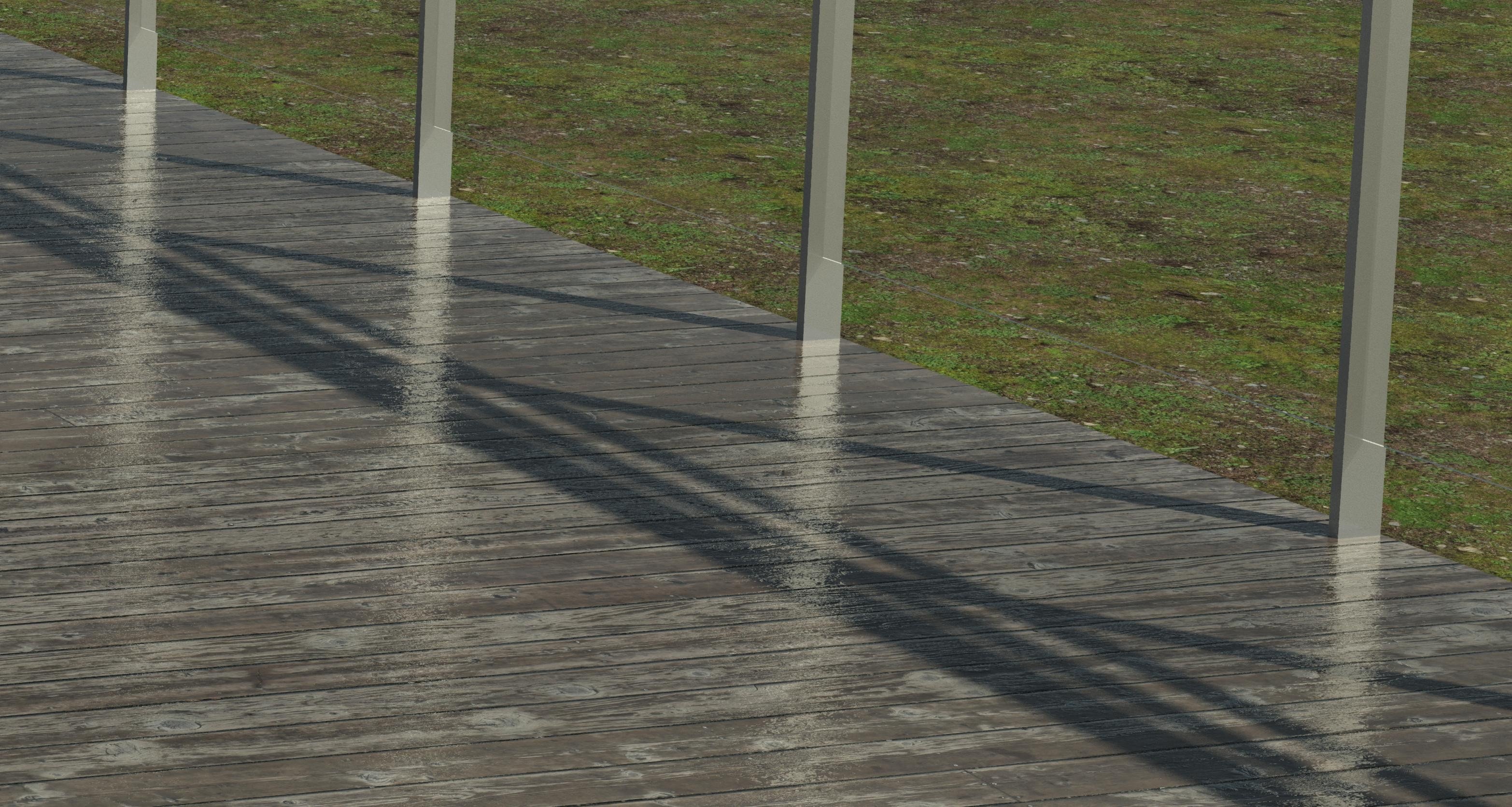
Rendering is rather improved
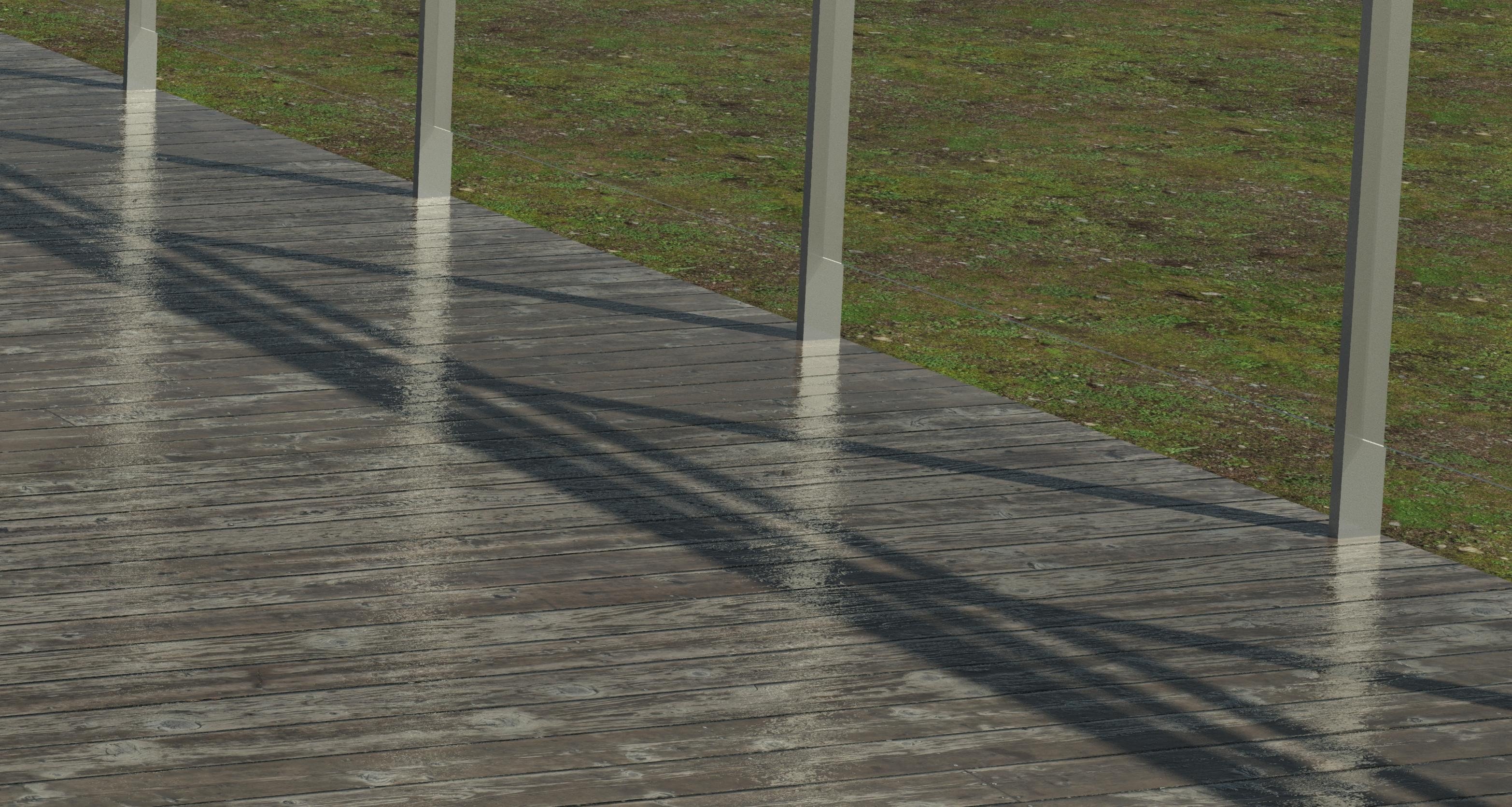
Add the Normal Map
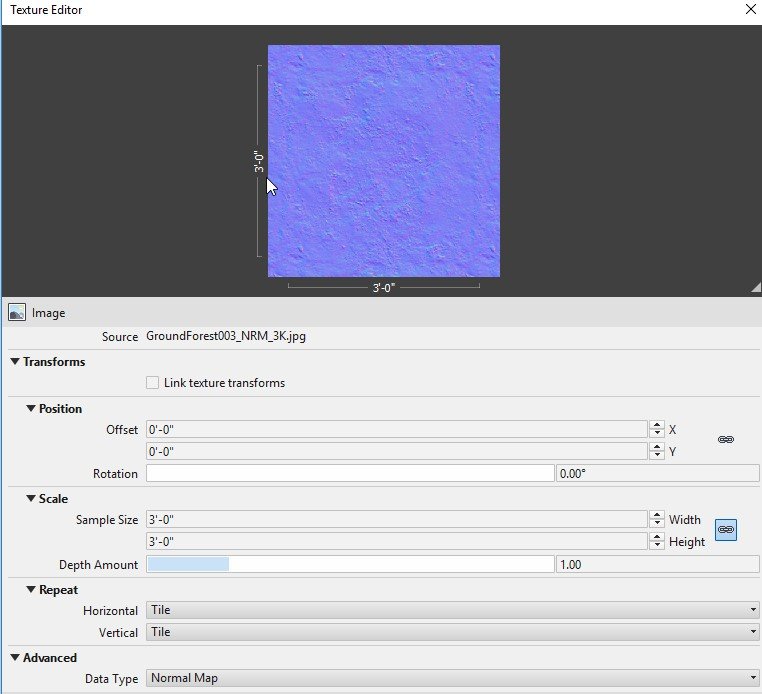
Appears to be a deeper-looking texture
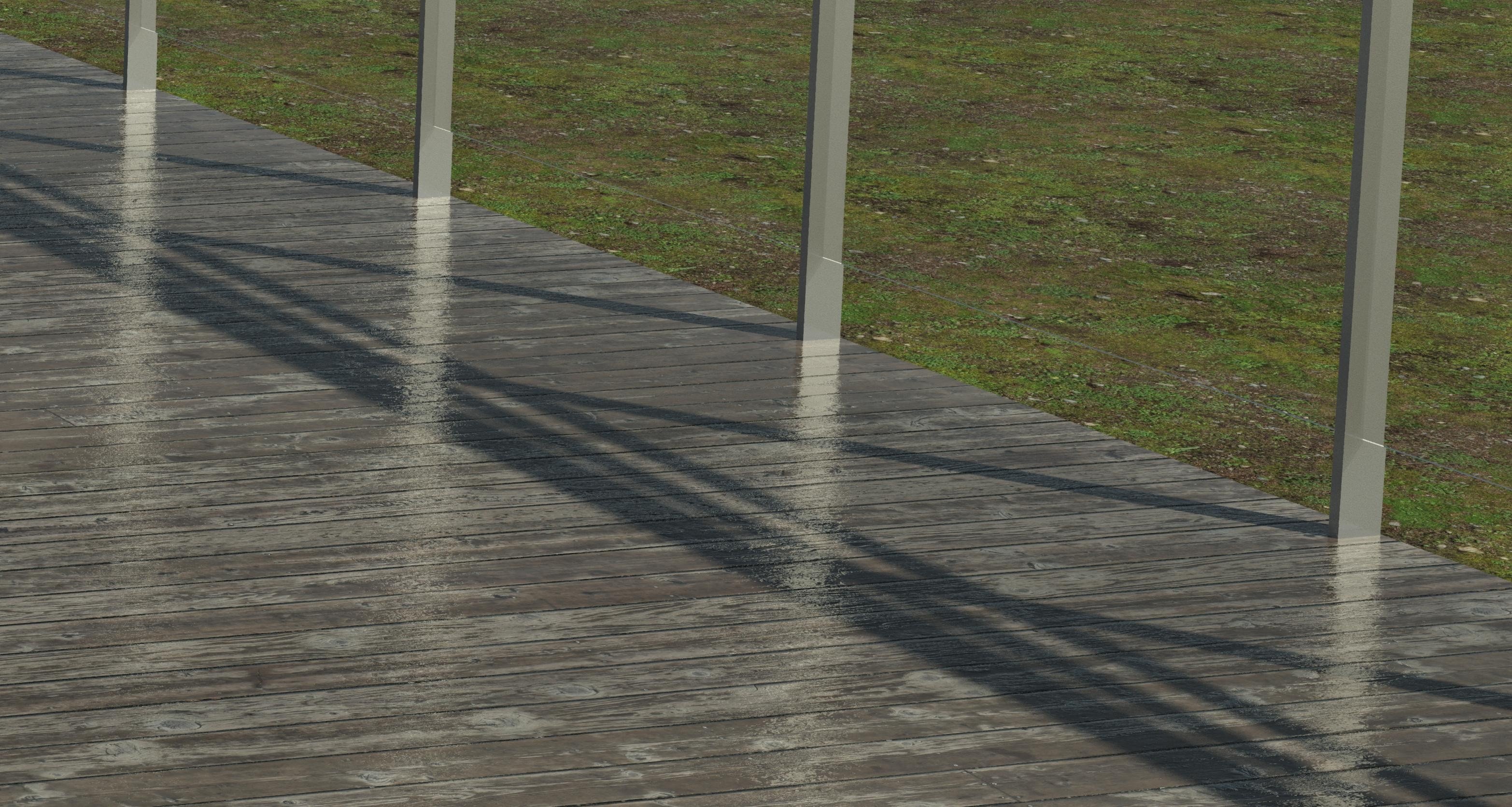
Add the Bump
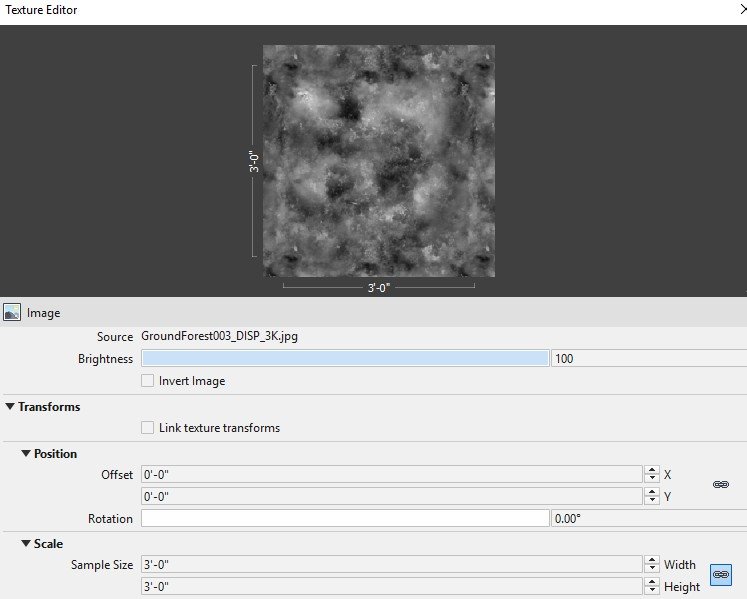
This is a very subtle change
Conclusion
It looks like the new shaders will let us get to a new stratum of photorealism with native Revit rendering.
Errata?
Did I get anything wrong? Contact the author.